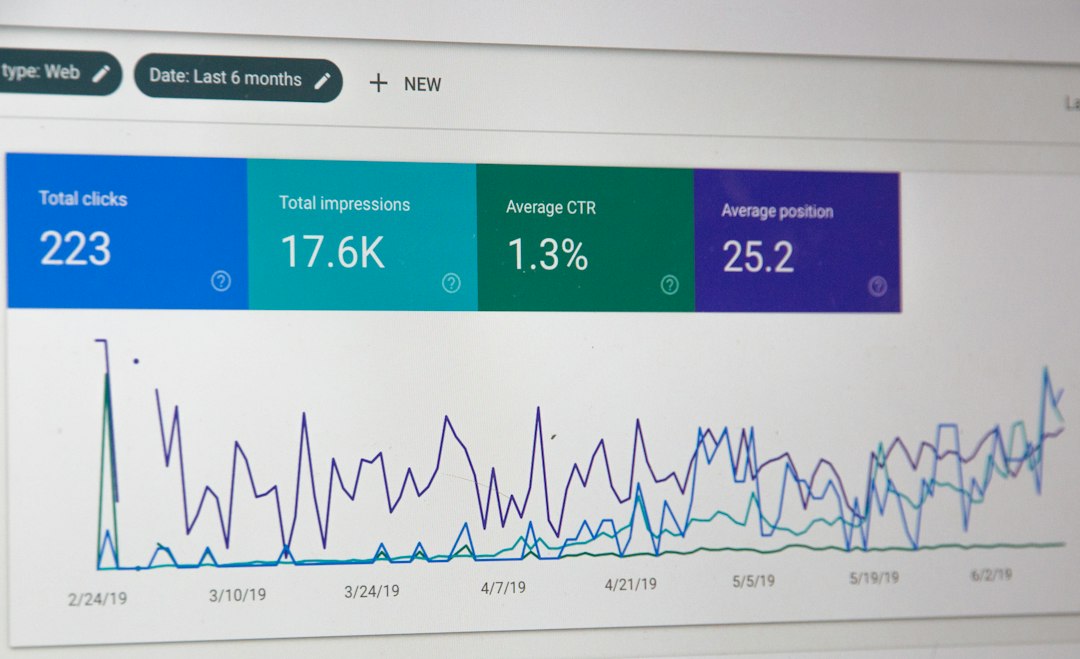

Want to turn raw traffic data into conversational insights? In this guide we’ll show you exactly how to connect Google Analytics 4 to ChatGPT, so you can query your metrics in natural language and make data‑driven decisions faster.
How to connect google analytics 4 to chatgpt — why it matters in 2026
By 2026, AI‑augmented analytics is no longer a novelty; it’s a competitive necessity. Linking GA4 with ChatGPT lets marketers and product teams ask questions like “Which landing page drove the highest conversion last month?” without digging through dashboards. The integration also fuels automated reporting, real‑time alerts, and personalized recommendations that keep you ahead of the curve.
For a deeper look at AI‑powered analytics, check out the latest research from Forbes Tech Council, which highlights how conversational interfaces are reshaping data culture across enterprises.
The top 5 steps to connect google analytics 4 to chatgpt
Getting the two platforms to talk is easier than you think. Follow these five core steps, and you’ll have a live connection ready for testing within an hour.
Step 1: create a google cloud project
- Visit the Google Cloud Console and click “New Project”.
- Name it something recognizable, e.g., “GA4‑ChatGPT‑Bridge”.
- Enable billing (a free tier is usually sufficient for low‑volume queries).
- Activate the “Analytics API” under “APIs & Services”.
Step 2: set up a service account
- In the Cloud Console, navigate to “IAM & Admin” → “Service Accounts”.
- Create a new service account with the role “Analytics Viewer”.
- Generate a JSON key file and store it securely; you’ll need it for authentication.
- Grant the service account access to your GA4 property (Admin → Property Access Management).
Step 3: obtain your ga4 measurement ID
- Open Google Analytics, select the desired property, and go to “Data Streams”.
- Copy the “Measurement ID” (format G‑XXXXXX).
- This ID will be referenced in the API calls that ChatGPT will make.
- Keep it handy for the next step.
Step 4: deploy a lightweight API wrapper
The wrapper acts as a bridge, converting natural‑language prompts from ChatGPT into GA4 Data API queries. You can use a serverless function (Google Cloud Functions, AWS Lambda) or a simple Flask app. Below is a high‑level outline:
- Read the incoming JSON payload from ChatGPT.
- Map intent keywords (e.g., “sessions”, “bounce rate”) to GA4 dimensions/metrics.
- Authenticate using the service‑account JSON.
- Call the GA4 Data API and return the results in a concise format.
Step 5: link the wrapper to chatgpt via openai’s function calling
OpenAI now supports “function calling”, allowing you to define a custom function that ChatGPT can invoke. Register your wrapper endpoint, define the function schema, and let ChatGPT decide when to call it. The result is a seamless conversational experience where the AI fetches live analytics data on demand.
How to connect google analytics 4 to chatgpt — step by step
Below is a practical, line‑by‑line walkthrough that puts the five steps together. Use the table to compare a serverless approach vs. a self‑hosted Flask app.
| Aspect | Serverless (Cloud Functions) | Self‑hosted Flask |
|---|---|---|
| Setup time | ≈ 30 minutes | ≈ 1 hour |
| Scalability | Automatic | Manual (requires load balancer) |
| Cost | Pay‑as‑you‑go (free tier often enough) | Server cost + maintenance |
| Maintenance | Minimal | Full stack updates |
Serverless example (Node.js)
exports.handler = async (req, res) => {
  const { prompt } = req.body;
  const query = mapPromptToGa4(prompt); // custom mapper
  const analytics = new AnalyticsDataClient({keyFilename: 'service-account.json'});
  const [response] = await analytics.runReport({
    property: `properties/${GA4_PROPERTY_ID}`,
    dimensions: query.dimensions,
    metrics: query.metrics,
    dateRanges: [{startDate: '30daysAgo', endDate: 'today'}],
  });
  res.json(formatResponse(response));
};
Flask example (Python)
from flask import Flask, request, jsonify
from google.analytics.data_v1beta import BetaAnalyticsDataClient

app = Flask(__name__)

@app.route('/ga4', methods=['POST'])
def ga4():
    data = request.json
    prompt = data.get('prompt')
    query = map_prompt(prompt)  # your own mapping logic
    client = BetaAnalyticsDataClient.from_service_account_json('service-account.json')
    response = client.run_report(
        property=f"properties/{GA4_PROPERTY_ID}",
        dimensions=query['dimensions'],
        metrics=query['metrics'],
        date_ranges=[{'start_date': '30daysAgo', 'end_date': 'today'}]
    )
    return jsonify(format_response(response))
Once your endpoint is live, register it with OpenAI:
- Go to the OpenAI Playground or your API dashboard.
- Create a new function definition with name
get_ga4_metrics. - Specify parameters (e.g.,
metric,dimension,date_range). - Provide the endpoint URL.
Now, when you ask ChatGPT “What were my top‑performing pages last week?”, the model will call get_ga4_metrics, fetch the data, and reply with a concise answer.
How to connect google analytics 4 to chatgpt: mistakes to avoid
Even seasoned developers trip up on a few common pitfalls. Avoid these to keep your integration smooth.
- Missing permissions: The service account must have at least “Viewer” rights on the GA4 property; otherwise API calls return 403 errors.
- Hard‑coding dates: Use relative date ranges (e.g., “30daysAgo”) to keep queries dynamic.
- Ignoring rate limits: GA4 Data API caps requests; batch multiple metrics into a single call when possible.
- Over‑exposing the endpoint: Secure your wrapper with an API key or OAuth token; otherwise anyone could query your analytics.
- Neglecting error handling: Return clear messages when the API fails so ChatGPT can respond gracefully.
Final thoughts on connecting google analytics 4 to chatgpt
Integrating GA4 with ChatGPT transforms raw numbers into a conversational ally, empowering teams to act on insights without digging through charts. The process is straightforward: set up a cloud project, create a service account, build a thin API wrapper, and hook it into OpenAI’s function calling. By following the steps and avoiding the common mistakes listed above, you’ll unlock a new layer of productivity for marketing, product, and leadership.
Ready to dive deeper? Check out our related post on leveraging AI for marketing analytics for advanced use‑cases and automation ideas.
Frequently asked questions
Can i use the free tier of google cloud for this integration?
Yes. The free tier typically covers the low‑volume API calls you’ll make during testing and early adoption. Monitor usage to avoid unexpected charges.
Do i need a paid openai plan to use function calling?
Function calling is available on most paid plans, but OpenAI also offers a limited free quota that includes this feature. Review the pricing page to choose the right tier for your needs.
What if i want to query custom events in ga4?
Simply extend your mapping logic to include the custom event names as dimensions or metrics. Ensure the service account has access to those custom definitions in the GA4 property.
How secure is the data transmitted between chatgpt and my api?
All communication should occur over HTTPS, and you can add an API key or OAuth token to the wrapper endpoint. This ensures that only authorized requests from OpenAI can retrieve your analytics data.